![Twinview Academy - Purple Background (3).png]](https://content.twinview.com/hs-fs/hubfs/Twinview%20Academy%20-%20Purple%20Background%20(3).png?height=50&name=Twinview%20Academy%20-%20Purple%20Background%20(3).png)
Dashboards in Twinview enable you to see live data for your portfolio, property, floor, room or equipment/asset.

Why Dashboards Matter
Dashboards provide an at-a-glance view of key building and asset metrics. By combining multiple live data streams (known here as IoT Data Streams) into visual widgets, dashboards help you:
- Monitor current performance at multiple levels (site, floor, room, equipment)
- Bring multiple data streams into one view for comparison
- Share insights with project teams or external viewers
Locating the Dashboard Tabs
Dashboards can be created at different levels within Twinview, depending on the scope of data you want to visualise. You can create Portfolio Dashboards to view data from multiple projects at once, Project Dashboards for a single building or site, or dashboards specific to an individual Room/Space or Asset.
Each dashboard level displays data relevant to its context, for example, a Project Dashboard might show energy performance across all systems, while an Asset Dashboard focuses on live readings from a specific piece of equipment.
1. Portfolio Dashboards
Portfolio Dashboards are available from the main Twinview screen once logged in and can be used to aggregate data from multiple projects or sites within your portfolio.

Please note that portfolio-level dashboards are private and can not be accessed by others.
2. Project Dashboards
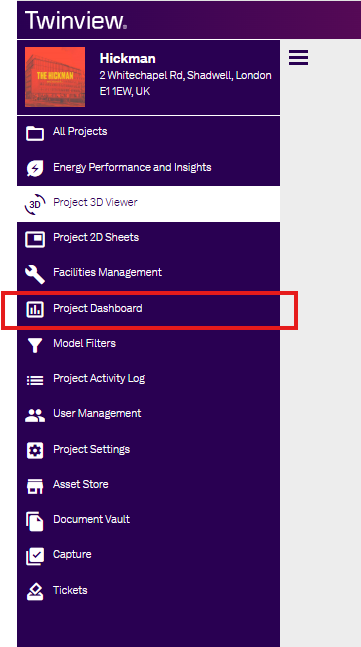
Project dashboards are available in the main navigation and are specific to each individual project. They can display data from all rooms, systems and assets within the building or site. Navigate to your chosen project and click “Project Dashboard” in the left-hand menu.
3. Room/Space Dashboards
Room/Space dashboards let you focus on localised information such as environmental conditions, occupancy or energy use in that specific room or space.
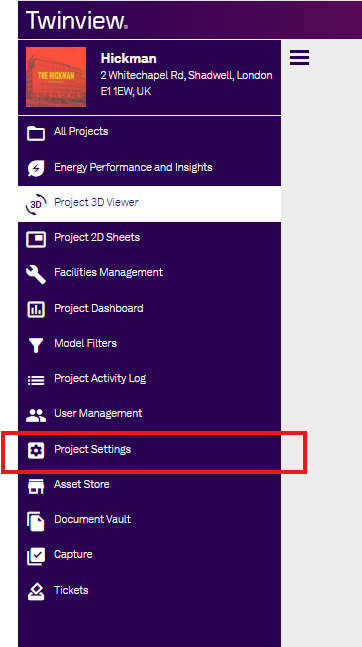
Browse to the specific room via the 'Project Settings' option in the main navigation.

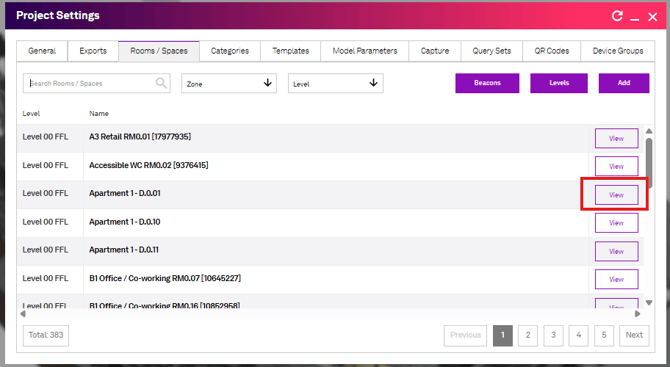
Select the specific room you would like to create a dashboard on.
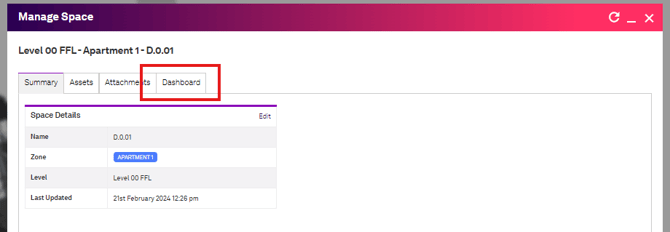
Finally, select the 'Dashboard' tab
You can then create individual dashboards for each room / space
4. Asset Dashboards
Asset dashboards display real-time IoT data, controls and historical trends for a specfic item and they can be added to any maintainable asset.
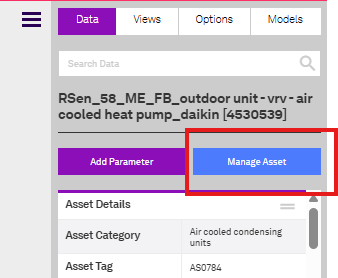
A dashboard can be added either by selecting the specific asset in the 3D model and clicking 'Manage Asset' in the right-hand navigation.
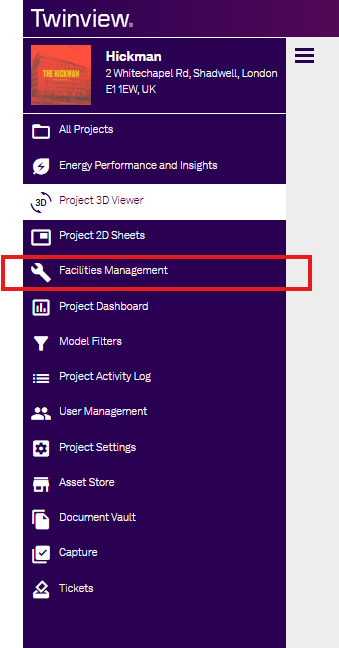
Or, you can select the asset via the Asset Register in the 'Facilities Management' option in the main left-hand navigation.
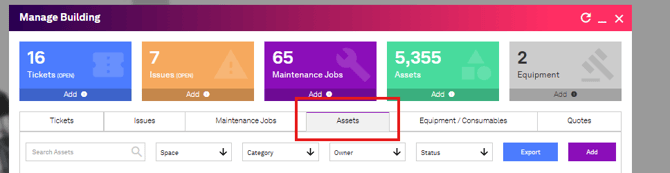
Then select the 'Assets' Tab and select the relevant asset.
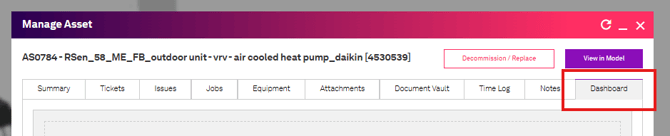
Once you are viewing the relevant asset, select the 'Dashboard' tab to access the Dashboards
Getting Started with Dashboards
Each dashboard in Twinview consists of one or more tabs, and each tab contains a collection of widgets that display live or historical data. You can create as many dashboards and tabs as needed to visualise information across your buildings, systems or assets.
When you open the dashboard tab for the first time, it will be blank until you start to add tabs and widgets.

To create your first dashboard, click on the '+' in the middle of the screen, and give your dashboard tab a name
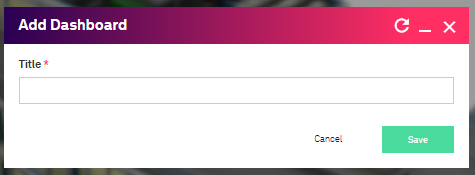
You can create additional dashboards to segment data, but selecting the '+' icon next your existing dashboards.
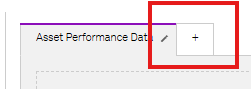
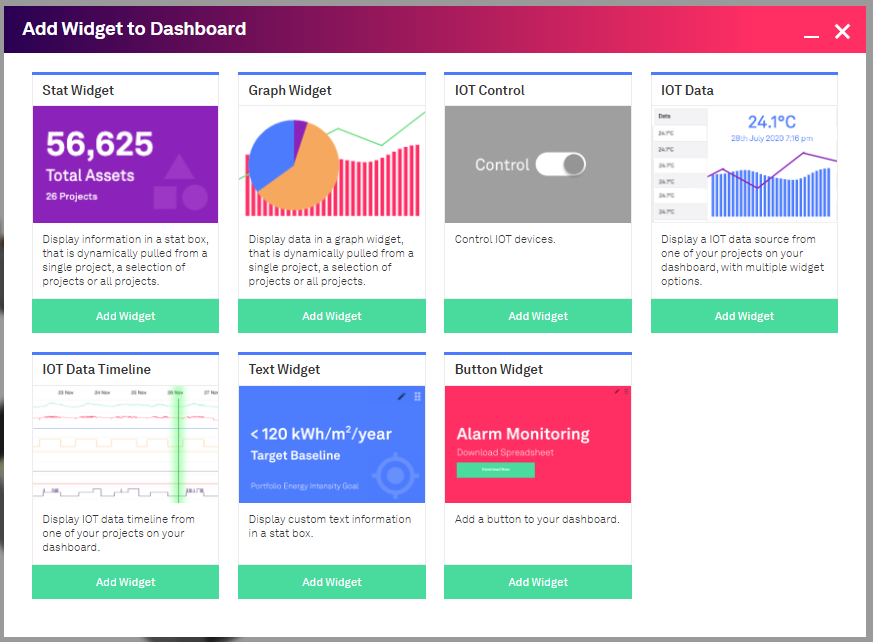
Dashboards are created using the pre-defined 'Widgets', and by clicking the “Add Widget” button in the top-right corner of the screen you can open the widget library and start building your view.
Widgets: Types & Options
Widgets are configurable and can display different types of information depending on what you connect them to, from single-value statistics to charts, trend graphs or IoT control panels. You can mix and match multiple widgets on the same tab to bring together key insights from various data streams.
In Twinview there are seven widget types, each with configurable setting depending on the type. Below are some of the key widget types and what they do:
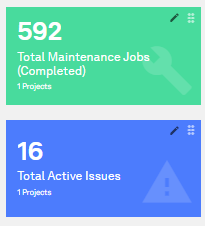
1. Stat Widget
The Stat Widget shows a single piece of data in a simple, colourful card. The card colour, size and icon can all be modified. These are typically used to display information on assets, maintenance jobs or documents.
2. Graph Widget
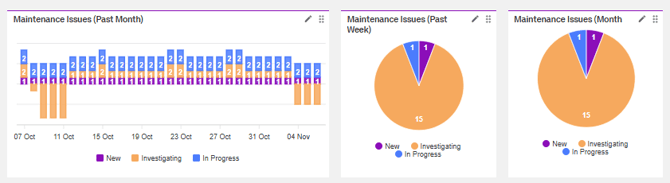
The Graph Widget shows graphical data from the Facilities Management module (tickets, issues and jobs) in a variety of chart types (Bar Chart, Pie Chart or Line Graph). The chart type, colour, size, etc, can be modified.
3. The IoT Control Widget
The IOT Control widget allows you to place a control widget on a dashboard that can be used to control a physical asset or device (user permission and roles allowing). There are a wide range of device types, from simple switches to complex device types like thermostats and media server controllers.
IOT Control Widget Sub-Types
| Control Device | Description |
|---|---|
|
Button |
A momentary button UI widget |
|
Slider |
A slider UI widget to control Valve position, volume, and anything else where a slider is needed. |
|
Toggle |
An on/off (boolean) toggle UI widget |
|
Selector |
A multi-dropdown selector widget to control things like alarm modes, etc |
|
Light |
A light control UI widget - with options for on/off, dimmable %, and colour (where supported) |
|
Thermostat |
A thermostat control UI widget - with options for set points, boost mode, operating mode and scheduling. |
|
Media Device |
A media control UI widget - with options for on/off, source selection, and volume. |
4. The IoT Data Widget
The IoT Data widget shows data from an OPT Datastream. Depending on the options selected, they can be just text, charts or combinations.

Although this widget has IoT in its name, it can also be used for any data being streamed into Twinview and is useful for other purposes too. For example, it can show information from another system or service that is sending data into Twinview, such as health statuses.

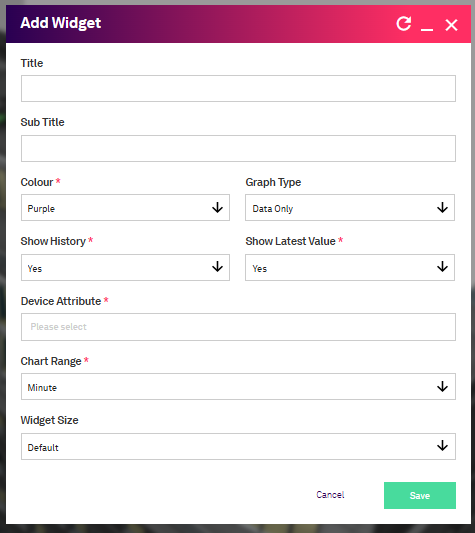
If, when assigning a device to a widget, the specific IoT device does not appear when you start typing its name, check that the device belongs to at least one Device Group and that you have the access permissions for it.
5. The IoT Timeline Widget
The IoT Timeline Widget displays data from multiple data streams in a single timeline format, also known as a trend graph. Unlike other widget types, the data in an IoT Timeline widget is interactive and can be used for comparison and analysis purposes.

When creating an IoT Timeline Widget, it's possible to include varying data points, including different data ranges and types (number, text or boolean) and you can configure the standard default data range view (Today, Week, Month, 3 Months).
Similar to creating an IoT Data Widget, you select the IoT device you want to chart in the 'Device Attribute' and you can add additional devices using the 'Add' option.
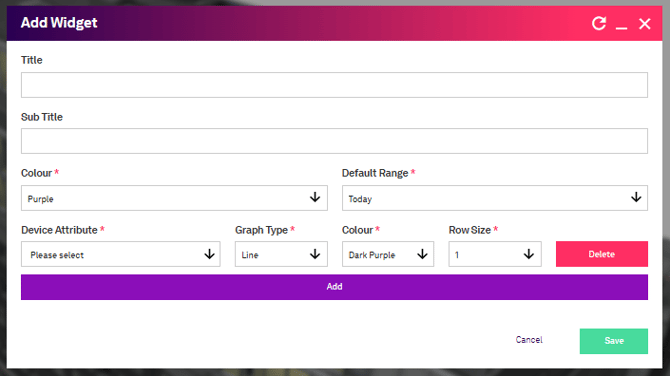
On the IoT Timeline Widget, users can change the timeframe as well as zoom in, by highlighting the chosen range, or left-clicking to bring up an option to 'increase' or 'decrease'

If, when assigning an IOT Data Stream to a widget the, the IOT Data Stream does not appear when you start typing its name, check that the IOT Data Stream device belongs to at least one Device Group and that you have permission to access the group.
6. Text Widget
The Text Widget allows you to add static text to a dashboard. It’s often used to display contextual information that isn’t sourced directly from Twinview, such as targets, objectives or explanatory notes, or to create clear section headings that organise longer dashboards into labelled sub-sections.
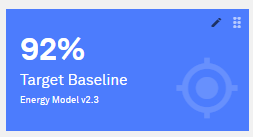
You can add a core Statistic, a title, sub-title, icon as well as a WYSIWYG-style editor for additional content.
7. Button Widget
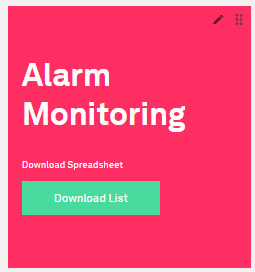
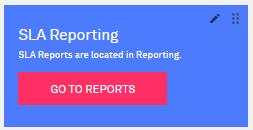
The Button Widget lets you add interactive actions to a dashboard. It can be configured for simple tasks, such as linking to an external webpage or intranet for additional context, or for more advanced actions, like triggering a download of an Excel report driven by real-time data in Twinview.
Sharing a Public Dashboard
You can create a public link to any dashboard in Twinview. This is useful when you want to share a dashboard with someone who doesn’t have a Twinview account, or when displaying information on public or shared screens.
Public dashboards are often used for:
- Displaying live information such as weather, air quality, or energy data in reception areas
- Creating large-format “Warboard” displays in a building manager’s office
- Sharing summary data with stakeholders outside your organisation
How to Create a Public Link
Step 1: Open the dashboard you want to share (or create a new one). Click the Edit icon on the dashboard tab.

Step 2: Click the Share button.

Step 3: Select Add Share Link.

Step 4: Enter a name for your shared dashboard, then click Save.

Step 5: A Public URL will appear. You can copy and share this link with others, or use it in a kiosk-style browser on a TV or digital display.

Step 6: When opened, the public dashboard will load without requiring a login. It will present a simplified, clean interface and automatically apply your organisation’s white-label branding.

Managing and Deleting a Public Link
If you delete a shared link, the public dashboard will immediately become inaccessible to anyone using that URL.
To delete a link:
Step 1: Open the dashboard and click the Edit icon (as in Step 1).
Step 2: Select the existing shared link and click Edit.

Step 3: Click Delete to remove the link permanently.

Top Tip - This feature can create a dashboard for Warboards and Control room displays.
You need a screen to load the browser in full-screen mode and refresh on a set poll frequency. Most browsers, including Chrome and Microsoft Edge, have a Kiosk model that can do this:
Microsoft Edge: Enabling Kiosk Mode
Chrome: Enabling Kiosk Mode
There are many third-party browsers designed for this purpose, some of which can run on a small embedded computer like a Raspberry Pi.